Objective
The goal of this lab was to enrol a Windows 10 device into Microsoft Intune and associate it with the correct user.
Environment
- Windows 10
- Microsoft Entra ID
- Microsoft Intune
- Microsoft 365 Business Premium
Problem
The device appeared in Microsoft Entra ID, but it was not displayed correctly in Microsoft Intune.
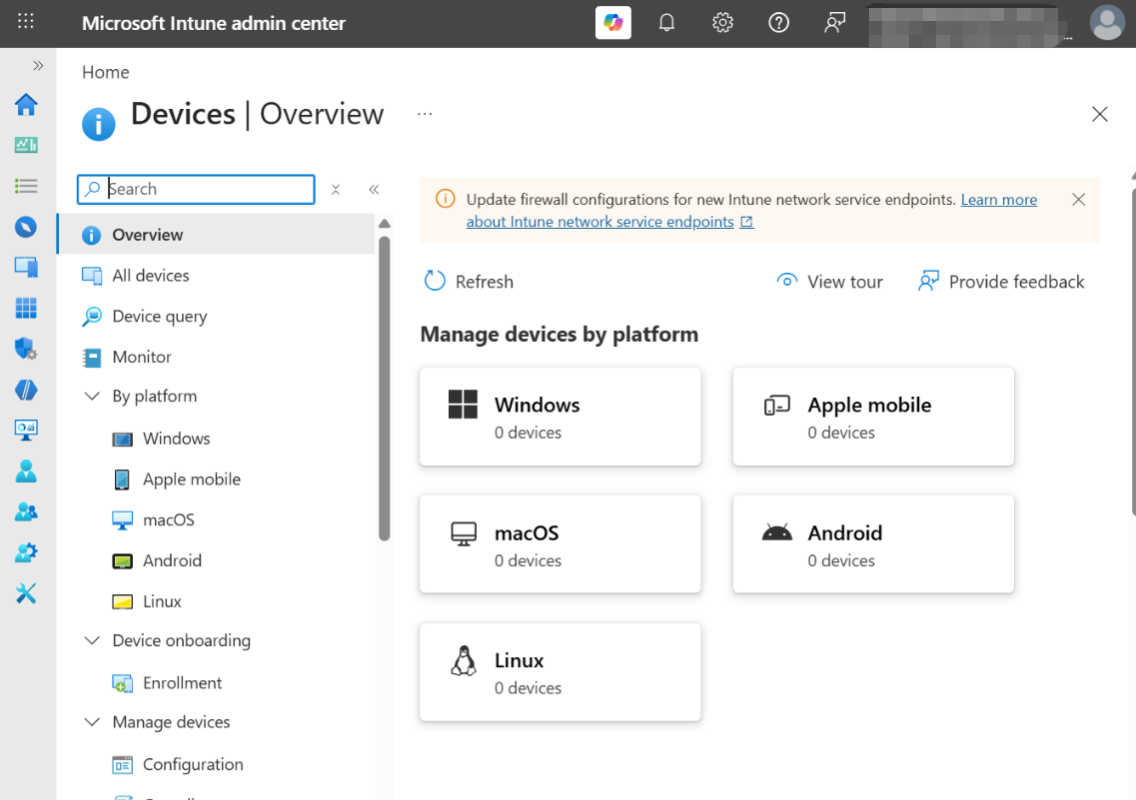
Investigation
Steps I checked:
Step 1: Verify the Microsoft 365 licence
The user had an active Microsoft 365 Business Premium licence, which includes Microsoft Intune. Therefore, licensing was not the cause of the issue.
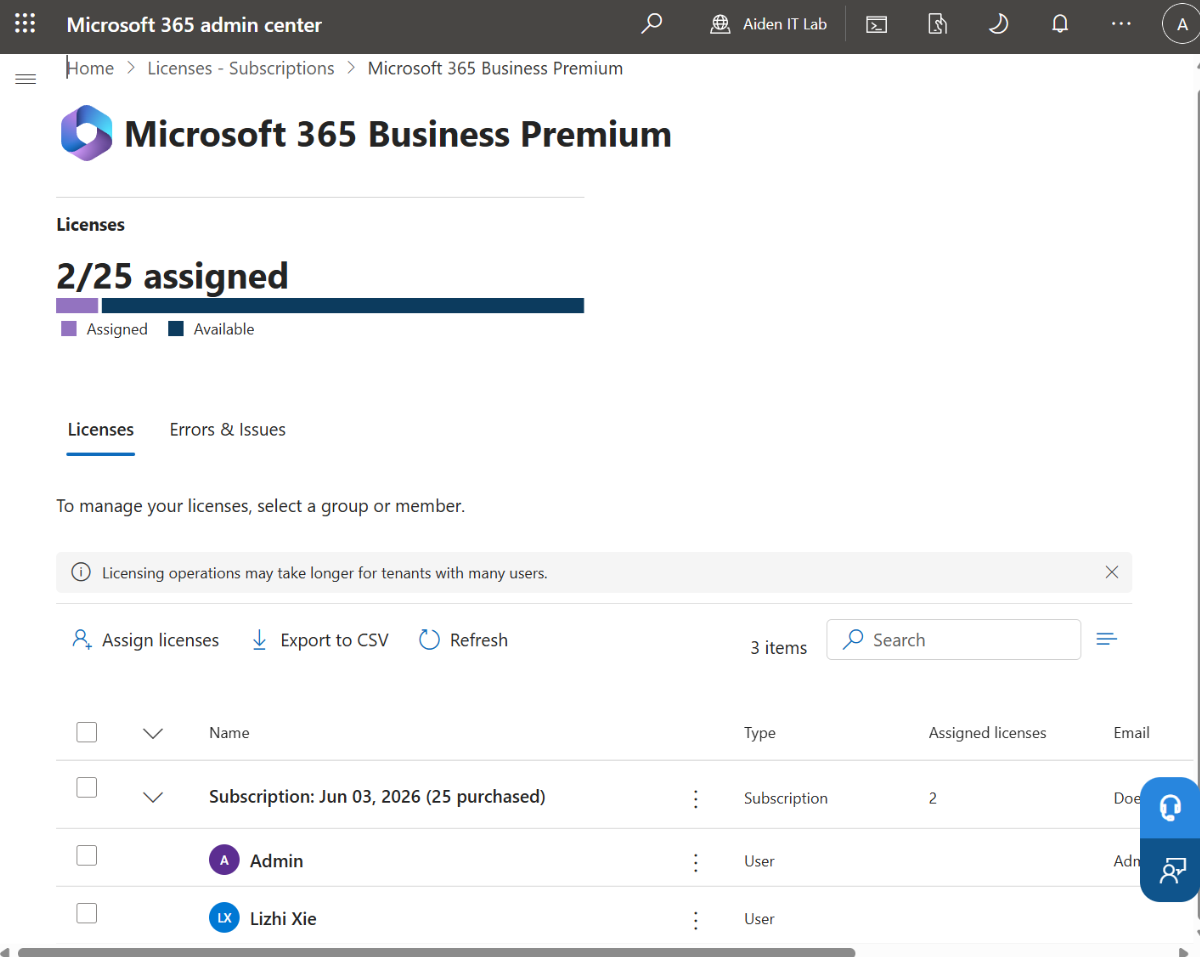
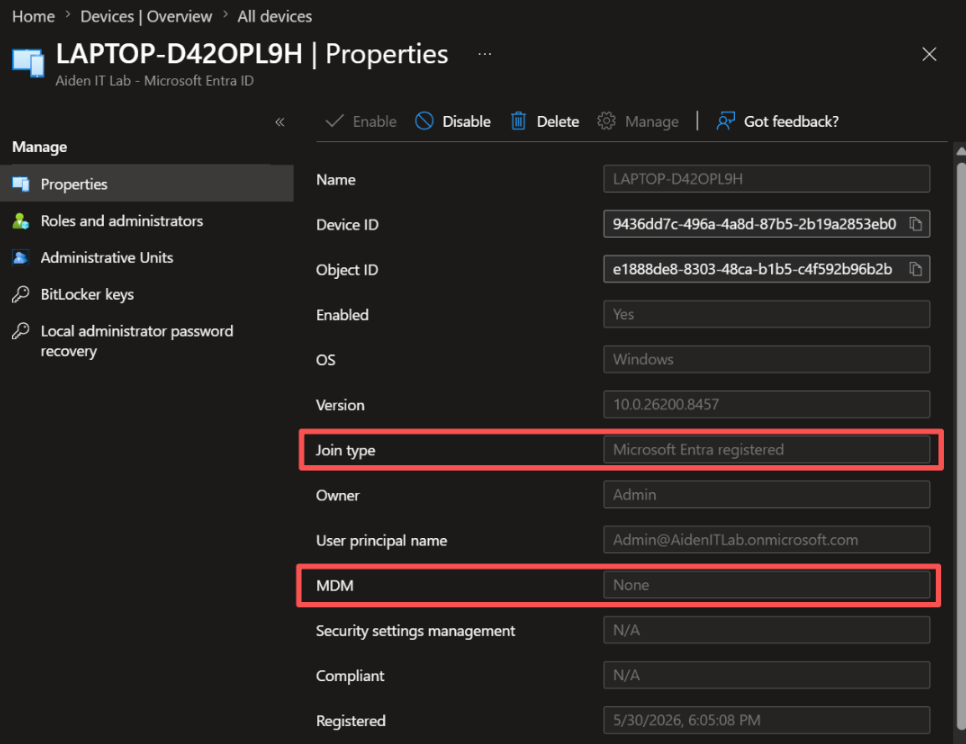
Step 2: Check the device in Microsoft Entra ID
The device existed in Microsoft Entra ID, but its join type was
Microsoft Entra registered and its MDM status was None.
This confirmed that Entra registration had succeeded, but Intune
enrolment had not.
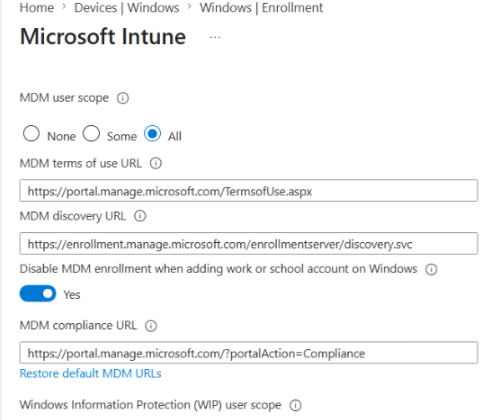
Step 3: Check the MDM user scope
The MDM user scope was configured as All, so the affected user
was eligible for automatic Intune enrolment.
Step 4: Run dsregcmd /status
The command returned:
- AzureAdJoined: NO
- WorkplaceJoined: YES
This showed that the device was workplace registered rather than Microsoft Entra joined.
AzureAdJoined : NO
EnterpriseJoined : NO
WorkplaceJoined : YES

WorkplaceSettingsUrl :
Root Cause
The device was Microsoft Entra registered, but it had not completed
Microsoft Intune MDM enrolment. The device status showed MDM: None,
and dsregcmd /status showed AzureAdJoined: NO and
WorkplaceJoined: YES.
The work or school account connection needed to be re-established after confirming that the user had a valid Intune licence and was included in the MDM user scope.
Resolution
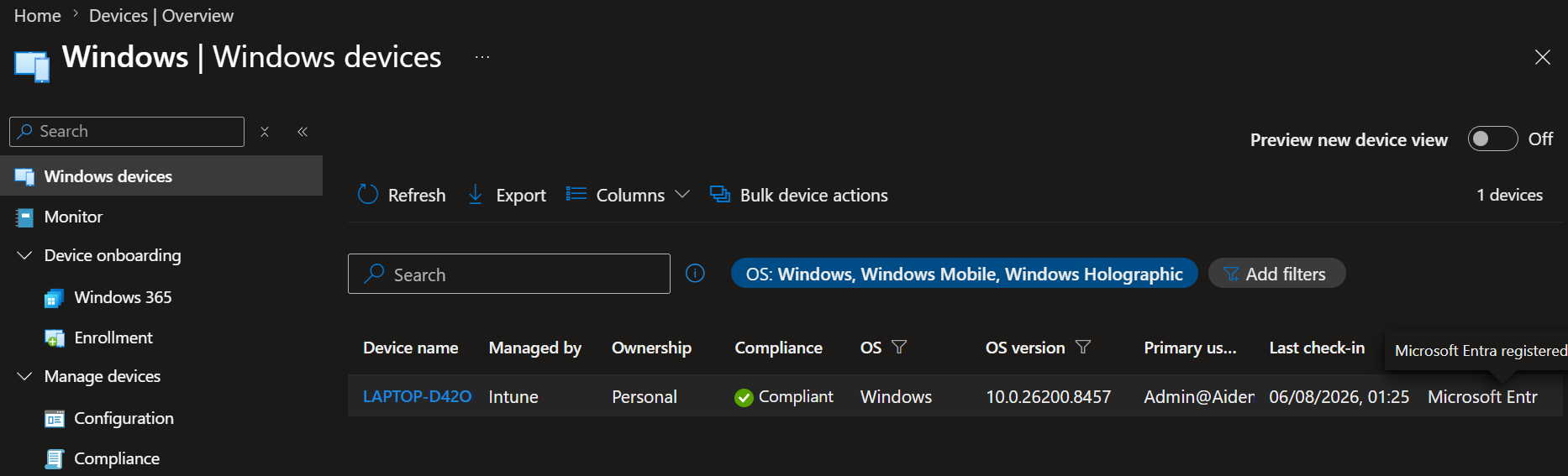
After checking the enrolment settings and reconnecting the work account, the device successfully appeared in Microsoft Intune.
Verification
The device was visible in both Microsoft Entra ID and Microsoft Intune.
Troubleshooting Workflow
Check Device State
  -> Check License
  -> Check MDM User Scope
  -> Run dsregcmd /status
  -> Verify MDM Discovery
  -> Perform Enrollment
  -> Verify Intune Management State